Automatic Borg Backups from Linux to TrueNAS
Setting up an automated, deduplicated backup system using BorgBackup, a custom Docker container on TrueNAS, and systemd timers.
I recently built a proper automated backup system for my daily-driven Linux desktop. It’s something I’ve been meaning to do for a while. I’m running CachyOS right now (an Arch-based distro), and while I don’t keep anything irreplaceable without some copy somewhere, I wanted a system where if my drive died or I needed/wanted to reinstall, I could get back to a fully working setup without spending a weekend manually reconfiguring everything.
My requirements for the system were: automatic daily backups, deduplication so I’m not wasting disk space on identical files, and the ability to restore selectively. I also wanted the backups stored on my TrueNAS server (currently running SCALE 25.10.1), which has RAIDZ1 redundancy. I decided to go with the highly praised BorgBackup software for this project.
The Setup on TrueNAS
TrueNAS SCALE doesn’t ship with Borg, and installing packages directly on the host is strongly warned against. Instead, I spun up a container based on linuxserver/openssh-server and used the DOCKER_MODS environment variable with universal-package-install to get Borg installed inside the container automatically. The relevant environment variables look like this:
DOCKER_MODS=linuxserver/mods:universal-package-install
INSTALL_PACKAGES=borgbackup
This is a nice pattern for LinuxServer containers in general: you get a clean SSH server with whatever extra packages you need, and it all rebuilds cleanly if the container gets recreated.
On the TrueNAS side, I created a dedicated borg user and a new dataset called borg-repos to store the backup repositories. The dataset is mounted into the container as a host path at /backups, and the borg user has ownership of it. I also created a host path for the ssh config directory, which gets mounted into the container at /config.
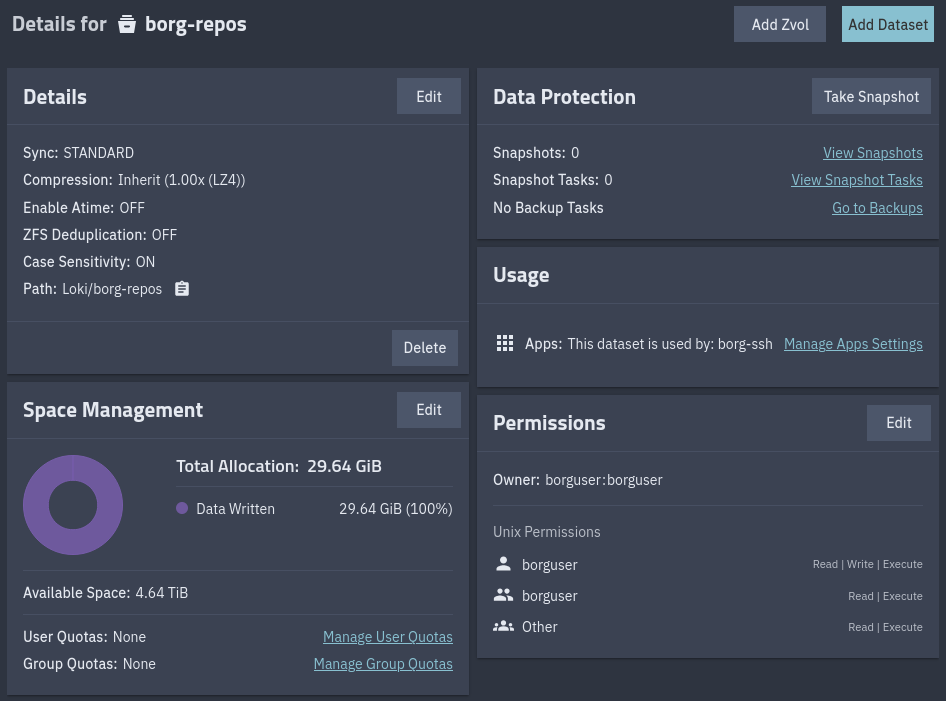
I exposed the container’s SSH port to the host on port 22332 (a non-standard port, which is a minor security measure but mainly just avoids conflicting with TrueNAS’s own SSH service and everything else I have running).
The Backup Script
The script runs on the desktop and pushes backups to the TrueNAS container over SSH:
#!/bin/bash

# --- Configuration ---
export BORG_REPO="ssh://borg@truenas:22332/backups/cachyos"
export BORG_PASSPHRASE="your-passphrase-here"
export BORG_RSH="ssh -o ConnectTimeout=10" # Safety for hanging connections

# --- Metadata Gathering ---
DATE=$(date +%Y-%m-%d_%H%M)
HOST=$(hostname)
BACKUP_NAME="${HOST}-${DATE}"

echo "--- Starting Backup: $BACKUP_NAME ---"

# Export package lists
sudo mkdir -p /var/backups
pacman -Qqe > /var/backups/pkglist.txt
pacman -Qqm > /var/backups/aur-pkglist.txt

# --- Backup Execution ---
borg create --verbose --stats --show-rc \
    --compression zstd,6 \
    --one-file-system \
    ::$BACKUP_NAME \
    /home \
    /etc \
    /root \
    /var/backups \
    --exclude '*/.cache' \
    --exclude '*/.local/share/Steam' \
    --exclude '*/.steam' \
    --exclude '*/Games' \
    --exclude '/var/lib/libvirt' \
    --exclude '/var/log' \
    --exclude '/media/Thor'

# --- Maintenance ---
echo "--- Pruning Old Backups ---"
borg prune --list --glob-archives "${HOST}-*" --show-rc \
    --keep-daily=7 \
    --keep-weekly=4 \
    --keep-monthly=6

echo "--- Compacting Repository ---"
borg compact
The important parts:
The package list export is probably the most useful part for disaster recovery on Arch. pacman -Qqe dumps every explicitly installed package, and pacman -Qqm dumps everything that came from the AUR. If I ever need to rebuild on a fresh install (even a different distro), those lists tell me exactly what I had. On Arch, you can feed that list right back into pacman -S --needed - < pkglist.txt to reinstall everything in one shot.
--one-file-system prevents Borg from crossing filesystem boundaries. This is a safety net: even if I forget to exclude a mount point, Borg won’t follow it into /mnt or /dev or wherever else. Can prevent a very annoying mistake.
--compression zstd,6 gives a nice balance between compression ratio and speed. Borg supports several algorithms, but zstd at level 6 compresses well without noticeably slowing down the backup.
The excludes are mostly about not wasting space on things that are trivially re-downloadable. Steam games, game save directories, VM disk images, logs. /media/Thor is where my NAS mounts into my system - obvious why it’s excluded.
The pruning policy keeps 7 daily, 4 weekly, and 6 monthly snapshots. Combined with Borg’s deduplication, this means I have six months of history without using much more space than a single full backup. borg compact reclaims the disk space from pruned archives.
The systemd Service and Timer
I didn’t want to rely on remembering to run the script, or on cron (which doesn’t handle “the machine was off at the scheduled time” gracefully). systemd timers with Persistent=true are a good solution for my requirements.
The service unit:
[Unit]
Description=Borg Backup Service
After=network-online.target
Wants=network-online.target

[Service]
Type=oneshot
# Run as root to ensure /etc and /root can be read
User=root
ExecStart=/usr/local/bin/borg-backup.sh

# --- Resource Limits ---
Nice=19
CPUSchedulingPolicy=idle
IOSchedulingClass=idle
# Optional: Cap CPU usage to 30% of a single core
# CPUQuota=30%

[Install]
WantedBy=multi-user.target
And the timer:
[Unit]
Description=Run Borg Backup daily

[Timer]
# Run every day at 12:00 AM
OnCalendar=*-*-* 00:00:00
# If the PC was off, run as soon as possible after boot
Persistent=true
# Randomize start by 15 mins so we don't hit the server at the exact same second
# Useful if we ever want to run multiple backup jobs
RandomizedDelaySec=15min

[Install]
WantedBy=timers.target
The service runs as root because it needs to read /etc and /root. The Nice=19, CPUSchedulingPolicy=idle, and IOSchedulingClass=idle settings ensure the backup runs at the lowest possible priority. If I’m gaming or compiling something, the backup just quietly slows down instead of competing for resources. The RandomizedDelaySec is more relevant if you have multiple machines backing up to the same server; it prevents them from all hammering the NAS at the exact same second.
After creating both files, enable the timer with:
sudo systemctl daemon-reload
sudo systemctl enable --now borg-backup.timer
You can verify it’s scheduled with systemctl list-timers and manually trigger a backup anytime with sudo systemctl start borg-backup.service.
Debugging the SSH Port Issue
This one cost me some time. The linuxserver/openssh-server container uses port 2222 internally by default, not 22. I had mapped 22332:22 in my container config, assuming the internal SSH daemon was listening on 22. Connections just hung until the ConnectTimeout kicked in.
To figure this out, I shelled into the container and checked what was actually listening:
docker exec -it openssh-server bash
netstat -tlnp
netstat -tlnp shows all listening TCP sockets with their port numbers and the process using them. The output showed sshd bound to port 2222, not 22. The fix was to change the port mapping to 22332:2222. After that, SSH connections went through immediately.
ss -tlnp does the same thing if it’s available. You can also try checking the sshd config directly (although the port here was commented out in my container):
grep -i port /etc/ssh/sshd_configRestoring from a Backup
The whole point of backups is being able to restore them. Here’s what the process would look like if I needed to set up a fresh system.
First, list available archives to find the one you want:
borg list ssh://borg@truenas:22332/backups/cachyosTo restore your home directory (the most common case):
cd /
borg extract ssh://borg@truenas:22332/backups/cachyos::cachyos-2026-03-29_0015 home/
For the package lists (to reinstall everything):
borg extract ssh://borg@truenas:22332/backups/cachyos::cachyos-2026-03-29_0015 var/backups/
pacman -S --needed - < /var/backups/pkglist.txt
# Then reinstall AUR packages using your AUR helper:
paru -S --needed - < /var/backups/aur-pkglist.txt
A word of caution about /etc: you probably don’t want to blindly restore the entire /etc directory onto a fresh install, especially if you’ve switched distros or even just jumped a few kernel versions. Config files in /etc are tightly coupled to the specific packages and versions installed on the system. Restoring an old fstab could make your system unbootable if your partition layout changed. Restoring old systemd units or PAM configs could break authentication.
The safer approach is to extract /etc to a temporary directory and then selectively copy what you actually need:
mkdir /tmp/etc-restore
cd /tmp/etc-restore
borg extract ssh://borg@truenas:22332/backups/cachyos::cachyos-2026-03-29_0015 etc/
# Then diff and cherry-pick what you need:
diff /tmp/etc-restore/etc/fstab /etc/fstab
cp /tmp/etc-restore/etc/someconfig /etc/someconfig
Things like custom systemd services, network configs, and application-specific configs in /etc are the ones you’d want to grab. System-level configs like /etc/mkinitcpio.conf or /etc/default/grub should be reviewed carefully before copying over.
Future Improvements
Some things I want to add to this setup eventually:
Move the passphrase out of the script. Right now BORG_PASSPHRASE is set directly in the script, which works but isn’t great practice. Borg supports BORG_PASSCOMMAND, which lets you pull the passphrase from an external source. Something like BORG_PASSCOMMAND="cat /root/.borg-passphrase" with the file locked to chmod 600 would be a straightforward improvement. For an even cleaner setup, you could pull it from a secret manager or a GPG-encrypted file.
An automated restore test. The backup is only as good as your ability to restore it. I’d like to set up a script that periodically spins up a fresh VM or Distrobox container, restores the latest backup into it, and runs some basic checks (do the expected files exist, do the package lists parse correctly, etc.). It would be good to know that my backups actually work before I ever need to use them…
Backup health monitoring. Right now, if the backup silently fails (say, the NAS is unreachable), I won’t know until I manually check the journal (journalctl -u borg-backup). Adding a simple notification system (a webhook to a Discord or Ntfy server, or even just a healthcheck ping to something like Uptime Kuma) that fires on success or failure would give me confidence that the system is actually working without needing to check on it.
Pre-backup snapshot with Btrfs. My system uses Btrfs. I could take an atomic Btrfs snapshot right before Borg runs. This would guarantee a completely consistent backup, since Borg backing up a live filesystem can theoretically catch files mid-write. For most desktop use this is unlikely to matter, but for databases or VM images it could be significant.